
Backing Up FANUC Robot Programs: A Step-by-Step Guide for Manufacturing Teams
Losing a FANUC robot program isn’t just inconvenient. It means downtime, re-teaching, and in worst-case scenarios, starting a program from scratch on a line that’s supposed to be running. Controller failures, firmware update complications, and hardware swaps are all common triggers.
What makes the situation worse is that many facilities do partial backups without realizing it. Backing up only the TP programs and missing system configuration data is the most common way teams find out what they missed when they actually need to restore.
Why Backing Up Robot Programs Is Non-Negotiable
FANUC robot programs represent real investment: engineering time, testing, and production validation. On a high-volume line, a robot program may have taken weeks to develop and tune. The consequences of unexpected downtime can be significant: according to Siemens, the average cost of industrial downtime now exceeds $25,000 per hour for many manufacturers, with larger facilities often experiencing significantly higher costs. Additionally, ABB reports that nearly 70% of industrial companies experience at least one unplanned outage each month. But the programs themselves aren’t the only thing at risk. A robot’s system configuration, including mastering data, I/O assignments, and system variables, is equally critical. A controller that’s been replaced or reset without a complete backup may run programs that position inaccurately or fail to communicate correctly with surrounding equipment. The motion looks right until the line runs out of tolerance.
Three Ways to Back Up FANUC Robot Programs
Method 1: USB Memory Backup via Teach Pendant
The most common method. Requires only a standard FAT32 USB drive and no additional software.
- Insert the USB drive into the correct port (check your controller model; some use the teach pendant port, others use the controller front panel)
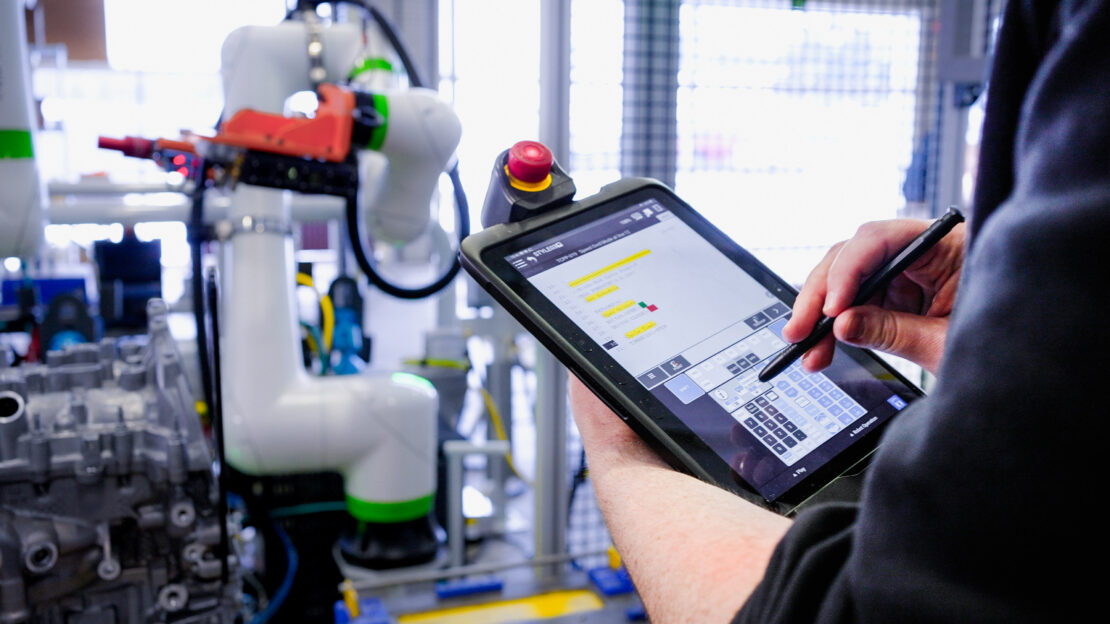
- Press MENU on the teach pendant
- Navigate to File, then select the device (UT1: or UT2: depending on port)
- For a complete backup: navigate to Backup/Restore, then select Image Backup if your controller supports it, or select All of Above to capture all file types
For controllers that support Image Backup, use it. It captures the full controller state in a single operation. If Image Backup isn’t available, manually select all file types: TP programs, KAREL programs, System Files, I/O configuration, and vision data if iRVision is in use.
Naming convention: Save backups with robot ID, controller model, software version, and date in the folder name (e.g., ROBOT-03_R30iB_V9.10_2026-06-28). This becomes critical when restoring to a replacement controller, when version compatibility must be confirmed quickly.
Method 2: FANUC ROBOGUIDE or PC-Based Backup
ROBOGUIDE is FANUC’s standard simulation and programming tool and also functions as a controller backup interface over a network connection. Connect to the controller via network (static IP required on the robot side, matching connection settings in ROBOGUIDE), then use the Backup function to pull a full controller image to the PC. ROBOGUIDE backups store as compressed archives, easy to version, store off-site, and compare against prior backups. One note: ROBOGUIDE versions don’t always align with controller software versions. Confirm compatibility between your ROBOGUIDE installation and the controller version before attempting a PC-based restore. A version mismatch creates restore complications. This method is well-suited for facilities with a dedicated automation team. The version management and off-site storage advantages make it the preferred approach for production-critical systems.
Method 3: Network/FTP Backup to a Host Controller
For facilities running multiple FANUC robots, pulling USB backups per robot manually is time-consuming and prone to gaps. FANUC controllers support FTP-based file transfer to a network host: a DNC system, a dedicated backup server, or an MES. Network backup requires configuring the robot’s Ethernet settings and the FTP host, and scheduling the backup process. It eliminates the manual USB dependency and enables centralized, versioned storage across a robot fleet. This is increasingly important as cybersecurity threats to the manufacturing industry grow. A study by IBM found that, manufacturing was the critical infrastructure sector most frequently targeted by ransomware groups in 2024. The setup investment is front-loaded; the ongoing burden is near zero. For facilities with 10 or more FANUC robots, this is the approach worth building toward.
What to Include in a Complete FANUC Backup
The most common backup gap: saving only TP programs and missing system-level
data. A complete backup includes:
- TP programs (.TP files): The robot motion programs
- KAREL programs (.KL and .PC files): Custom application logic, if used
- System variables (SYSVARS.SV): The controller’s configured parameters
- Mastering data (MAST.IO): The robot’s calibration reference. If this is missing on restore, the robot runs programs with incorrect positioning.
- I/O configuration: Digital I/O assignments linking the robot to other equipment
- Vision data: If iRVision is in use, vision process files must be backed up separately
- Error log (useful context): Diagnostic history, especially if restoration is being triggered by a fault condition
Best practice across FANUC environments: a backup missing mastering data or system variables is incomplete regardless of whether the motion programs are intact.
How Often Should You Back Up FANUC Programs?
The practical standard:
- After any program modification: Any time a program is edited, tested, or
- Before any controller maintenance: Before firmware updates, hardware work, or any controller intervention
- Monthly at minimum: For active lines where programs are stable
- Immediately after commissioning: The baseline backup. Take it the moment the robot goes live.
The USB method takes less than ten minutes. The risk calculation on skipping it rarely holds up.
Restoring a FANUC Robot Program: What to Know Before You Start
Restoration carries its own risks. It isn’t the reverse of backup.
Controller version compatibility: FANUC backup files from one controller version may not restore cleanly to a different version. This is the most common source of restore complications. Confirm that the backup matches the controller model and software version of the target system. If restoring to a replacement controller, verify the software version before purchasing or installing the replacement.
Mastering: Image backup restores mastering data. Program-only restore does not. A robot restored without mastering data runs programs with incorrect positioning and requires re-mastering before returning to production.
Validate before returning to production: After any restore, run in restricted mode (low speed, collision detection active) and verify program execution. Never assume the restore was clean without validation.
Common Backup Mistakes (and How to Avoid Them)
Backing up TP programs only. The most common mistake. See the complete file list above.
Not verifying backup integrity. A backup interrupted by a USB disconnection or stored on a failing drive may be incomplete. Periodically verify backups by testing a restore in ROBOGUIDE.
Using mismatched controller versions. Label backups with controller model, software version, and date. This saves significant troubleshooting time when a restore is needed urgently.
Storing backups only on-site. A hardware event that damages the robot may also damage a USB drive stored nearby. Production-critical robot programs belong in off-site or cloud storage.
FAQs
A complete backup includes TP programs (.TP), KAREL programs (.KL/.PC), system variables(SYSVARS.SV), mastering data (MAST.IO), I/O configuration, and vision data if iRVision is in use. Backing up TP programs alone is the most common source of incomplete restore scenarios. Use Image Backup on controllers that support it. It captures the full controller state in a single operation and is the most reliable path for disaster recovery.
Yes. FANUC controllers accept standard FAT32-formatted USB drives. Capacity requirements are modest. Some controllers use the teach pendant USB port; others use the controller front panel. Check your controller documentation. Standard consumer USB drives work fine; high-speed drives offer no meaningful advantage for backup operations.
An image backup captures the full controller state, including all programs, system variables, mastering data, and I/O configuration, in a single archive. A program backup copies selected files individually. Image backup is the right choice for disaster recovery; program backup is useful when you need to transfer a specific program to another controller. Use image backup as your standard backup method.
Via teach pendant: MENU, then File, then select the backup device, navigate to the file, then F4 (RESTORE). For full image restores, boot into the Boot Monitor and select the image restore function. Confirm version compatibility before starting. Run in restricted mode after restore and validate program execution before returning to production.
Basic TP motion programs can sometimes be transferred between compatible models, but it’s not guaranteed. System configuration, mastering data, and KAREL programs are model-specific and don’t transfer cleanly. Robot models with different axes or payload ratings add further complexity. Consult a FANUC authorized integrator before attempting cross-model transfer. Testing in ROBOGUIDE simulation first is the reliable approach.
Program-level restore: minutes. Full image restore: 30–60 minutes depending on controller model and backup size. Boot Monitor restores on older controllers can take longer. Plan for validation time on top of the restore itself. Restricted mode testing before returning to production is where most of the elapsed time goes.
Patti Engineering is a FANUC Authorized System Integrator with hands-on experience across automotive, food and beverage, pharmaceutical, and semiconductor manufacturing. If you’re working through a FANUC integration, installation, or retrofit, or building out backup and recovery practices for a robot fleet, contact Patti Engineering to talk through what you’re working on.
Related categories: Blog FANUC Robotics Uncategorized